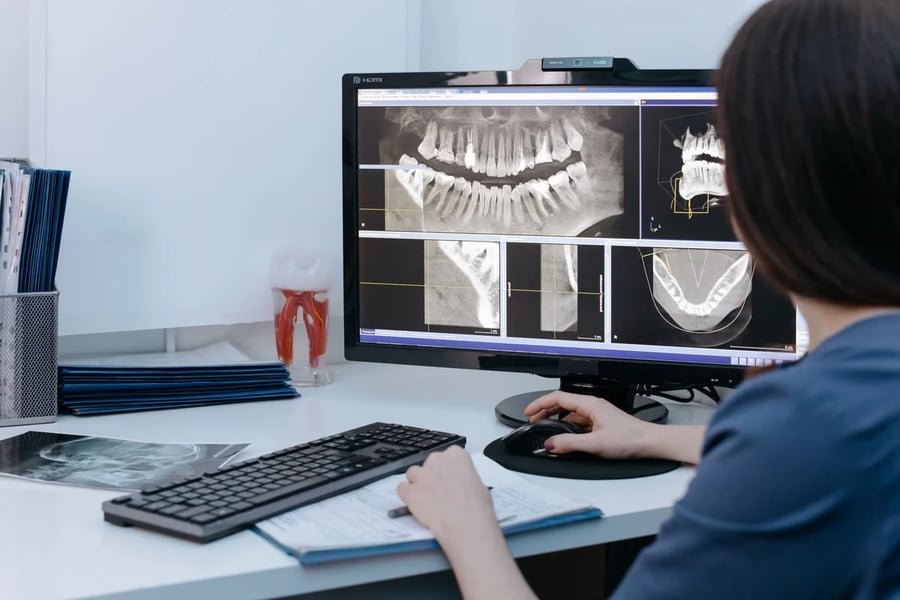
Dental practices generate more digital data than most patients realize. Imaging, treatment plans, and billing records all live on office computers that used to require a physical visit to reach.
Healthcare data stayed a major target through 2025, with roughly 138.5 million patient records exposed in reported breaches across the industry, according to the HHS Office for Civil Rights.
Remote desktop access changes the equation for a dental office. It lets an authorized team member reach a specific practice computer, imaging system, or software license from anywhere, without exposing the whole office network.
Here is what that shift actually looks like in a working practice.
Key Takeaways
Remote desktop access lets dental staff reach practice software and imaging from any location without a full VPN
Multi-location and group practices use it to centralize IT support across several offices at once
Strong encryption and permission controls keep patient records compliant with HIPAA while remote
It replaces slower alternatives like shipping equipment or waiting for an in-person IT visit
The right platform scales cleanly as a practice adds locations or associate dentists
What Remote Desktop Access Means for a Dental Practice
Remote desktop access is software that lets an authorized user connect to one specific computer from another device and control it directly, as though sitting at that desk.
That distinction matters more as a practice grows. Most offices still default to a VPN when someone needs to reach the network from outside, which means extending the whole network out to a remote device.
Remote desktop access for practices works differently. It reaches the target machine directly, so there is no network segment to secure and no tunnel to maintain every time an associate logs in from home. Our look at business VPN options for California companies covers why that setup effort trips up smaller offices in particular.
A practice manager does not need to open the whole network to a hygienist working from a second location. They need that one person looking at one machine, under one set of permissions.
That narrower scope also simplifies onboarding. Adding a new associate or a temporary hire means creating one account with defined permissions, not reconfiguring a shared network tunnel every time staffing changes.
Why Multi-Location Practices Are Adopting It
Dental practice structure has shifted toward multiple locations faster than many owners expected. Only 73% of dentists now work from a single office, according to the American Dental Association's 2024 workforce report.
The remaining 27% split across group practices with several offices, some running well past 100 locations. Each added site multiplies the IT tickets a central team has to resolve.
“We have seven offices and so there is a need every day to log into the remote computers.”
(Brian E., Technical Director, G2 review, July 2025)
That reviewer's situation is common across multi-location dental groups. A technician working from a central office can resolve a scheduling glitch or printer conflict at any location in minutes, rather than driving between sites.
Video: "Access Remote Desktop Over the Internet (Outside Network)": https://www.youtube.com/watch?v=DXUTEKsroSo
This walkthrough shows the basic mechanism a technician uses to reach a computer outside the local network, the same principle multi-location dental IT support relies on every day.
Our recent piece on small business technology trends covers several other shifts pushing practices toward centralized, remote-first operations. Group practices that grew through acquisition often inherit a patchwork of software and hardware across sites, which makes a single, consistent way to reach every machine even more valuable.
Keeping Patient Records and Imaging Secure While Remote
Granting remote access to a machine that stores protected health information only works if it does not weaken the practice's security posture.
The Department of Health and Human Services has published specific guidance on remote use under the HIPAA Security Rule, covering encryption, workstation security, and access controls for any covered entity.
A detailed overview of healthcare cybersecurity issues makes a related point: attackers increasingly target smaller healthcare offices precisely because their defenses tend to lag behind larger hospital systems.
Before allowing remote access to any system holding patient data, confirm the setup includes:
Encryption on every remote session, not just the login step
Multi-factor authentication for each individual user
Permissions scoped to the specific machine or folder needed
A session log that records who accessed what, and when
⚠ Compliance Note: Never let staff share one login for remote access. Individual accounts are what make a HIPAA audit log meaningful if a device is ever compromised.
Our earlier coverage of how remote work has reshaped cybersecurity risk walks through why this shift affects small offices just as much as large corporate networks, dental practices included.
Remote Desktop Access vs a Traditional VPN for Dental Practices
Remote Desktop Access | Traditional VPN | |
|---|---|---|
What it reaches | One specific computer or server | The entire office network |
Setup for a new team member | Assign an account and permissions | Configure firewall rules and client software |
Imaging and practice software | Runs on the same machine already installed in the office, so compatibility is rarely an issue | Depends on whether the software tolerates remote network traffic |
|---|---|---|
IT troubleshooting | Technician sees the exact same screen as the user | Technician must still remote into a machine separately |
A traditional VPN still has a place in a larger practice's network design. For day to day tasks like checking a chart, reviewing an X-ray, or fixing a software glitch, reaching one machine directly is usually the simpler path.
Some practices end up running both, using a VPN for broader network needs and direct machine access for the specific systems staff and technicians touch most often.
What to Look for in a Remote Desktop Access Solution for Your Practice
Not every remote access platform suits a dental office. Weigh these criteria before choosing one:
Compliance support: Confirm the vendor supports HIPAA safeguards such as encryption, audit logs, and access controls
Imaging compatibility: Test the platform against your actual X-ray and imaging software, not just general office applications
Staff ease of use: A hygienist or front desk lead should be able to join a session without extensive training
Multi-location scaling: Confirm pricing and account administration stay manageable as the practice adds locations
Performance: High resolution imaging requires low latency, so test performance before rolling the platform out practice wide
Weigh these against your practice's size and the sensitivity of the systems involved, rather than choosing on price alone. A platform that looks inexpensive but lacks proper access controls can cost far more in compliance exposure than it saves in licensing fees.
FAQs
Is remote desktop access secure enough for patient records?
Yes, when the platform uses strong encryption, multi-factor authentication, and detailed session logs. Guidance from HHS OCR recommends exactly these safeguards for any remote connection to systems holding patient data.
What makes remote desktop access different from a VPN?
Remote desktop access connects you directly to a single computer and lets you control it as if you were sitting there. A VPN extends the whole company network to your device instead, which usually means more setup and a wider security perimeter.
Can a small, single-location practice benefit from remote desktop access?
Yes. Even a single office benefits when an owner or associate needs to check the schedule, review imaging, or support a staff member's machine from outside the building.
Does remote desktop access work with dental imaging software?
Most platforms run the software directly on the office computer rather than transmitting files separately, so compatibility depends on the office machine itself rather than the remote access tool.
Who should manage remote access permissions at a dental practice?
The practice owner or a designated IT contact should control account creation, assign permissions per person, and review the access log periodically as part of routine HIPAA compliance.
Does adding remote access increase a practice's cybersecurity risk?
Not when it replaces riskier habits like shared logins or unmanaged file transfers. A well configured platform with encryption and defined permissions generally narrows a practice's exposure rather than widening it.
The Bottom Line
Dental practices are not becoming fully remote, and most patient care will always happen in person. What has changed is how practice teams reach the systems behind that care.
Remote desktop access gives owners, associates, and IT support a direct line to office computers and imaging systems without the overhead a full network setup demands.
Choosing a platform with strong encryption, clear permissions, and dependable performance turns that access into an advantage rather than a compliance risk. Practices that get this right spend less time on IT logistics and more time on the patients in the chair.
References
HHS Office for Civil Rights, HIPAA Security Rule Guidance on Remote Use, https://www.hhs.gov/sites/default/files/ocr/privacy/hipaa/administrative/securityrule/remoteuse.pdf
The HIPAA Journal, Healthcare Data Breach Statistics, 2026, https://www.hipaajournal.com/healthcare-data-breach-statistics/
American Dental Association Health Policy Institute, U.S. Dentist Workforce Report, 2024, https://www.ada.org/resources/research/health-policy-institute/dentist-workforce
Fact Check: All statistics and data points in this article were verified against original sources as of September 15, 2026. Sources are listed in the References section.
Copyright © 2026 California Business Journal. All Rights Reserved.
For California Business Journal Disclaimers, go to https://calbizjournal.com/terms-conditions/.


